This tutorial walks through enabling the Construction AP workflow pack in OceanFlow — the invoice review inbox that flags supplier invoices needing project assignment before posting to Xero. Documents must land in the correct OceanDMS folder first; this guide assumes your project folder structure is already in place.
Prerequisites
Before enabling the Construction AP pack, confirm:
| Requirement | Details |
|---|---|
| OceanDMS Invoices folder | Projects/{address}/Invoices/ or top-level Suppliers/Invoices/ receiving supplier PDFs |
| Xero connection | OAuth2 credentials configured in OceanFlow Settings → Integrations |
| OceanFlow desktop | Installed on admin/finance workstation; logged in with tenant admin role |
| Project list | Active project addresses or job codes available for matching |
| Chart of accounts | Xero expense accounts mapped to project cost codes (one-time setup) |
Enable the Construction AP Workflow Pack
- Open OceanFlow desktop → Automation tab.
- Click Browse Workflow Packs → select Construction AP (or Construction — Invoice Review).
- Click Enable Pack → the setup wizard launches.
Wizard steps
Step 1 — DMS folder binding
- Select the OceanDMS folder that receives supplier invoices (e.g.
Suppliers/Invoices/). - Choose trigger: New document uploaded (recommended) or Scheduled scan (hourly).
Step 2 — Xero connection
- Confirm Xero organisation is connected (green status indicator).
- Select default expense account for unmatched invoices (review queue only — matched invoices use project-specific accounts).
Step 3 — Matching rules
- Auto-match criteria: invoice contains project address or job code in reference field, PO number, or vendor history.
- Tolerance: amount within ±5% of expected PO value (optional; disable for first deployment).
- Enable Create draft bill in Xero on auto-match (recommended) vs Create approved bill (only if matching rules are proven).
Step 4 — Notification recipients
- Add email addresses for PM notifications (new invoice flagged) and daily overdue summary.
- Set business hours for notifications (e.g. 7 AM – 6 PM weekdays).
- Click Activate → pack status changes to Enabled. First scan runs within 15 minutes.
Configure Project List & Notification Recipients
After activation, refine project matching:
- Automation → Construction AP → Settings → Project List.
- Import active projects from CSV or sync from project management integration:
project_code,address,pm_email,cost_code
JOB-1042,123 Main St Red Hill,pm.sarah@builder.com.au,4100
JOB-1043,456 Oak Ave Paddington,pm.mike@builder.com.au,4100
JOB-1044,789 Pine Rd New Farm,pm.sarah@builder.com.au,4100
- Enable Fuzzy address matching if supplier invoices use abbreviated addresses (e.g. "123 Main" matches "123 Main St Red Hill").
- Add Vendor aliases for frequent suppliers whose invoice format differs (e.g. "ABC Electrical" vs "ABC Electrical Supply Pty Ltd").
Using the Automation Inbox
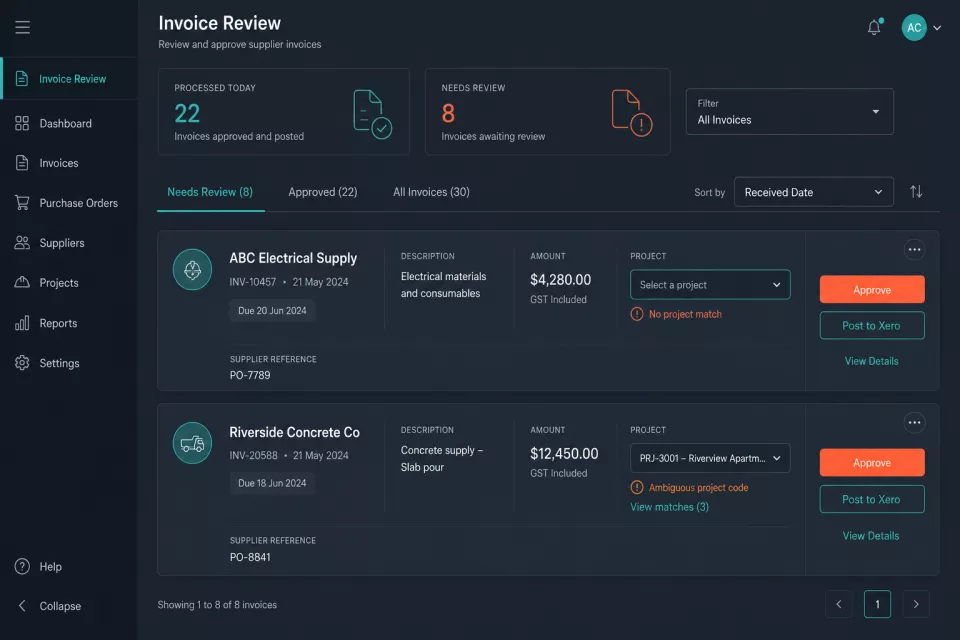
Open Automation → Inbox to see pending items.
Summary strip (top of inbox)
| Metric | Meaning |
|---|---|
| Processed Today | Invoices auto-matched and posted (or draft-created) since midnight |
| Needs Review | Invoices flagged for human action |
| Est. Time Saved | Calculated from auto-processed count × average manual entry time |
Flagged reasons
Each card in Needs Review shows a reason badge:
| Badge | Cause | Typical resolution |
|---|---|---|
| No project match | Reference field empty; vendor not in history | Select project from dropdown |
| Ambiguous project code | Multiple projects match partial reference | Select correct project |
| New vendor | First invoice from this supplier | Confirm vendor in Xero; assign project |
| Amount mismatch | Invoice exceeds PO tolerance | Verify with PM; adjust or split |
| Missing PO | Project requires PO; none referenced | Obtain PO or override with PM approval |
Auto-processed items
The Processed section (collapsed by default) lists invoices that matched automatically — vendor, amount, project, status Posted to Xero with green checkmark. No action required unless audit spot-check flags an error.
Human-in-the-Loop Actions
For each Needs Review card:
flowchart TD
    Flagged["Invoice flagged\nin inbox"]
    Review["Admin reviews\ncard details"]
    Assign["Select project\nfrom dropdown"]
    Approve["Approve & Post\nto Xero"]
    Skip["Skip / Reassign\nto PM"]
    Posted["Draft or approved\nbill in Xero"]

    Flagged --> Review
    Review --> Assign --> Approve --> Posted
    Review --> Skip
- Review — open card; verify vendor, amount, date, and attached PDF in preview pane.
- Assign project — select from dropdown (sorted by active projects; "Unassigned" keeps in queue).
- Approve & Post to Xero — creates bill in Xero with project cost code; card moves to Processed.
- Skip / Reassign — routes to PM email with link back to inbox item; card stays in queue until PM resolves.
- Flag for finance — escalates to senior admin for amount disputes or new vendor setup.
Target resolution time for exception cards: under 2 minutes. Auto-matched invoices require zero touch.
Monitoring Processed vs Needs-Review Metrics
Weekly review (Automation → Construction AP → Reports):
- Auto-match rate — target ≥50% after first month; ≥70% after vendor alias tuning
- Average exception resolution time — target <3 minutes
- Overdue in queue — items in Needs Review >48 hours (investigate PM responsiveness)
- Xero sync errors — failed posts requiring manual intervention
Export CSV for finance manager review or connect to OceanFlow Daily Business Health Report pack for consolidated visibility.
Troubleshooting Common Exceptions
| Symptom | Likely cause | Fix |
|---|---|---|
| No invoices appearing in inbox | DMS folder binding wrong; trigger not firing | Re-run wizard Step 1; upload test PDF manually |
| All invoices flagged "New vendor" | Vendor not in Xero contacts | Sync contacts or add vendor aliases |
| Xero post fails with account error | Cost code not mapped | Settings → Chart of Accounts → add mapping |
| Duplicate bills in Xero | Invoice re-uploaded with same reference | Enable duplicate detection in matching rules |
| PM not receiving notifications | Email outside business hours filter | Adjust notification window or add after-hours recipient |
| Auto-match rate stuck below 30% | Suppliers omit project reference | Train suppliers to include job address; add PO requirement |
Once the Construction AP pack is stable, consider enabling Daily Overdue Invoice Summary for PM visibility and Daily Business Health Report for owner-level financial snapshots. See our Brisbane builder case study for deployment outcomes.
Contact us for OceanFlow setup assistance.